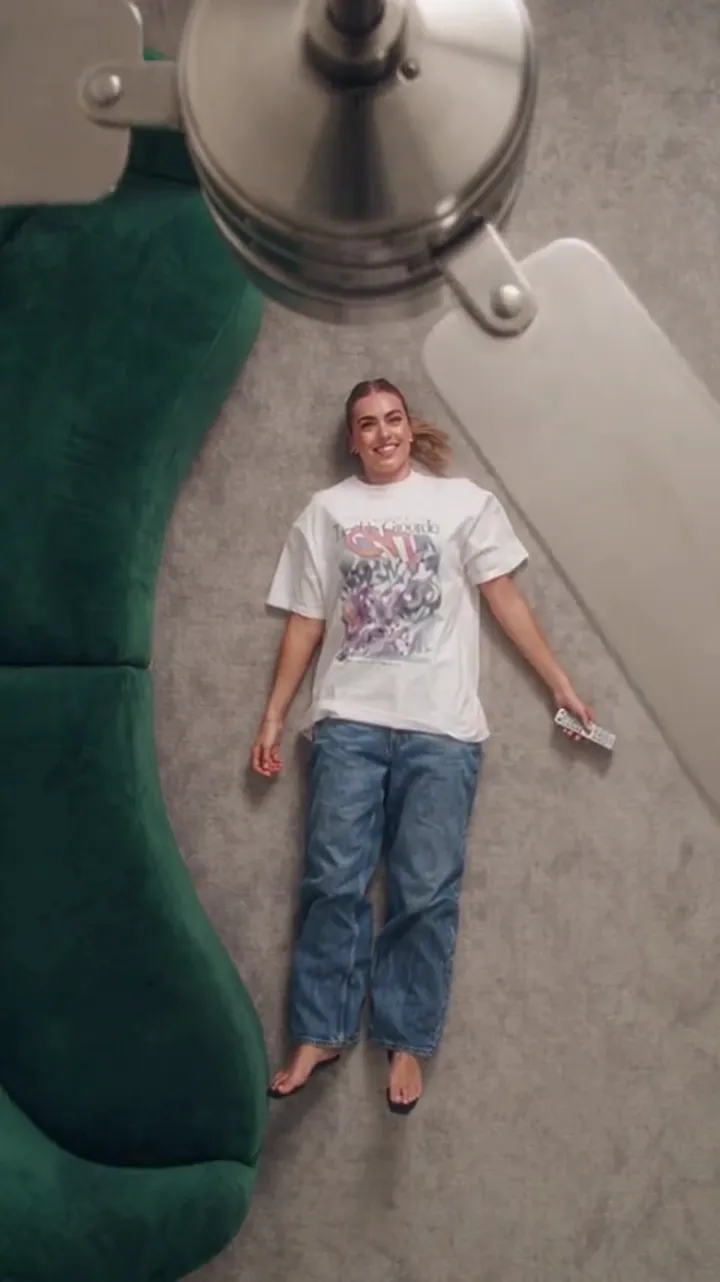
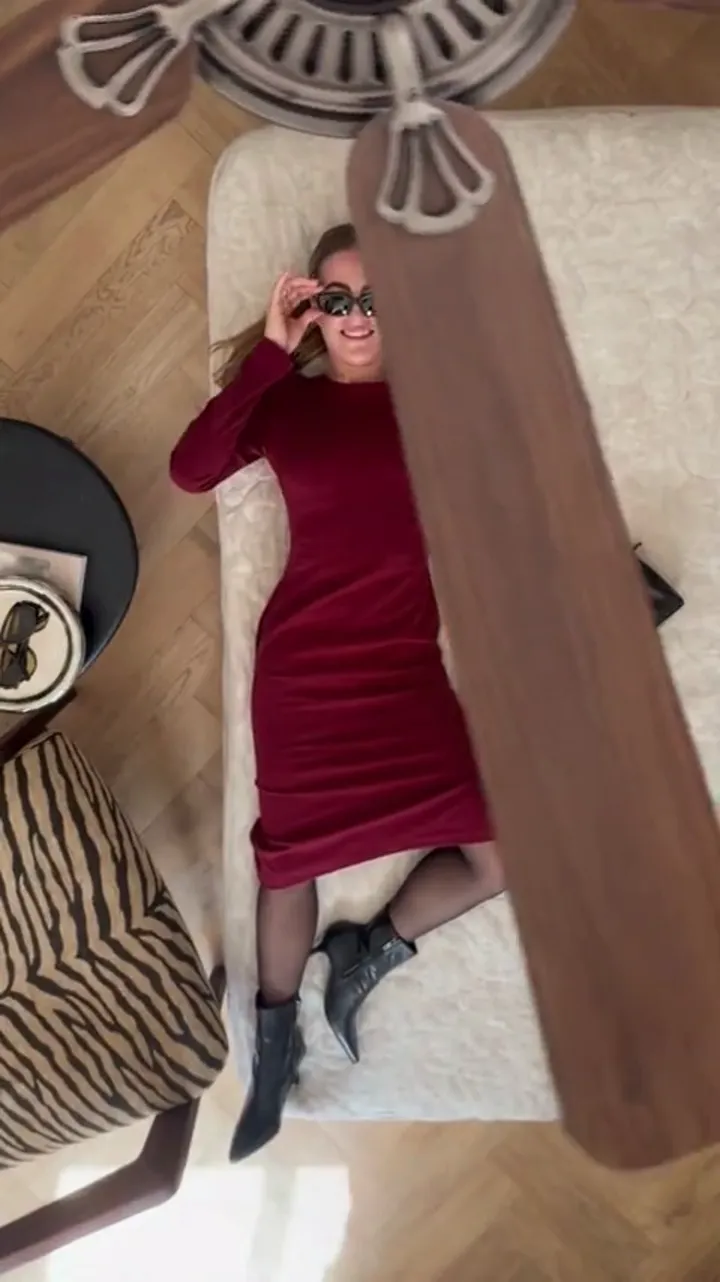
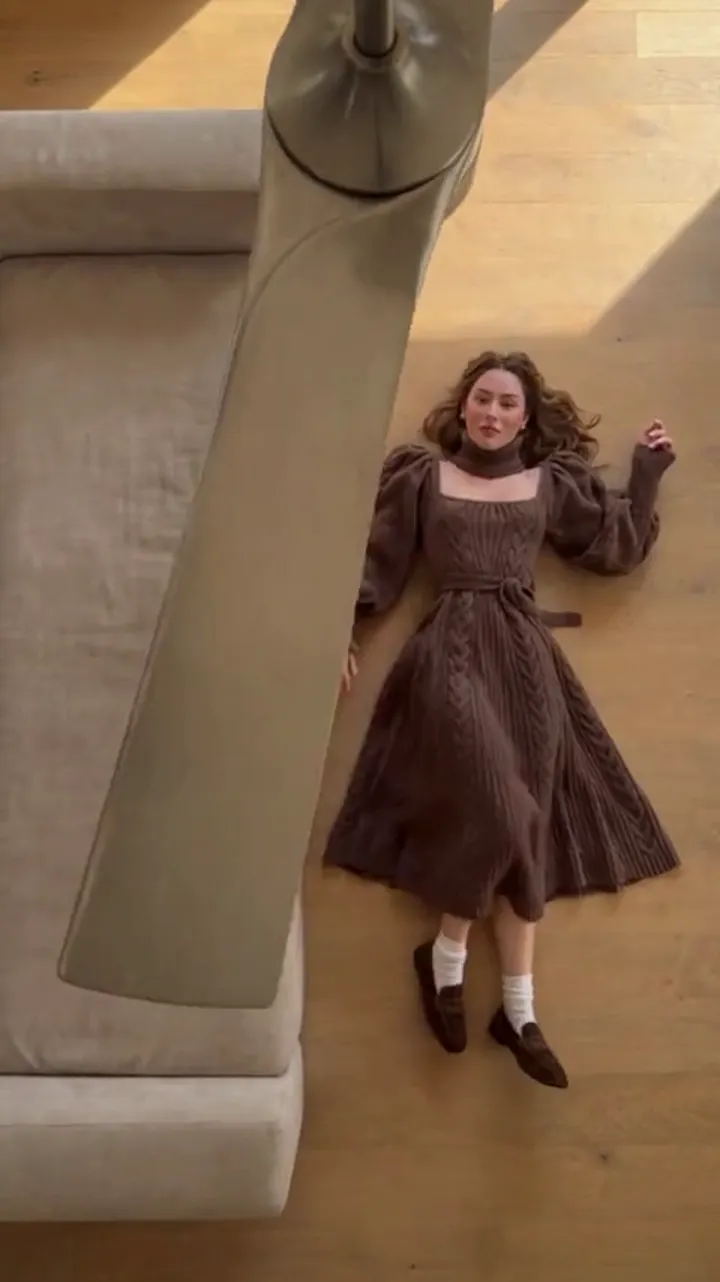
Fan Transition AI Video: Length, Resolution and Format
Choose 6 or 12 seconds, 480p or 720p or 1080p, and 9:16 or square. Here is what changes between the settings, what each clip costs, and what to try first.
Ceiling Fan AI editorial team · Updated October 12, 2026
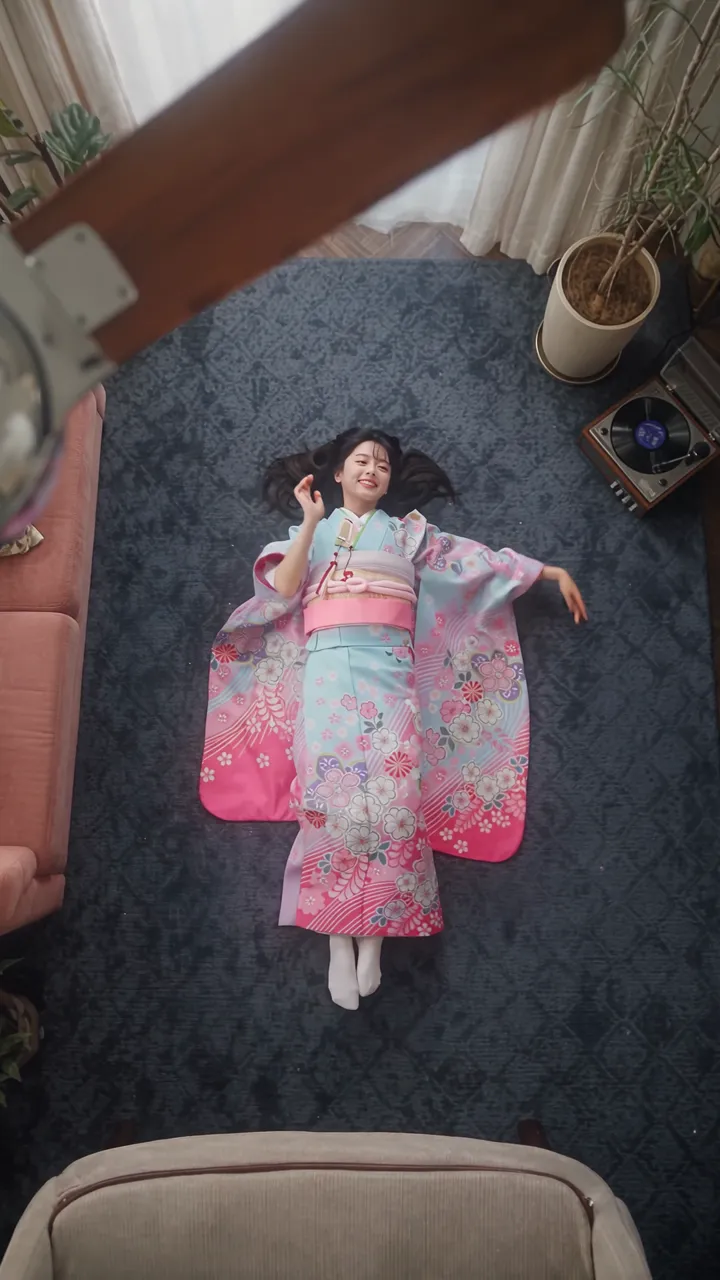
Before you generate, the studio asks three questions about the file itself: how long, how sharp, and what shape. None of them change who is in the video or what they wear. They only decide the file you get back and what it costs.
This page walks through each choice so you can pick deliberately instead of guessing.
6 seconds or 12 seconds
Length decides how many outfit changes the clip can hold. The model needs a little room at the start for the blade to arrive and a little room at the end for the last outfit to be seen, so not every second is a change.
- 6 seconds is a tight loop with room for one or two changes. It suits a single reveal, and it loops cleanly on a feed because it ends before attention does.
- 12 seconds is the default and fits three or four changes. It gives the trend its full shape: the blade arrives, and each pass reveals the next look.
There is a third question behind the length: whether you want a loop or a short story. A 6-second clip can be watched twice in the time a 12-second clip is watched once, which often means the change registers more clearly. If you are posting to a feed and want the effect noticed, start short.
Cost scales with length and rounds up to a whole credit, so a 6-second 1080p clip is 15 credits and the 12-second default is 30. A free account reaches 30 credits after two daily claims, which pays for either one 1080p, 12-second clip or six 6-second 720p clips.
What resolution actually changes
Resolution is pixel count. It does not change the room, the blade or the outfits, and it does not change the timing of the wipe. It changes how much detail survives when the file is displayed large.
| Resolution | Pixels (vertical) | 12 seconds | 6 seconds | Where it holds up |
|---|---|---|---|---|
| 480p | 480×854 | 5 credits | 3 credits | Quick tests, previews, small screens |
| 720p | 720×1280 | 10 credits | 5 credits | Phone playback, feed posts, the standard video |
| 1080p | 1080×1920 | 30 credits | 15 credits | Large screens, main posts, a keeper clip |
The jump that matters most on a phone is 480p to 720p, because 480p softens faces and fine fabric quickly. The jump from 720p to 1080p is smaller on a phone and larger on a big screen. If the clip is going straight to a feed and will mostly be watched on a phone in vertical mode, 720p is a sensible default and costs a third of 1080p.
Two practical notes. First, upscaling later does not add detail that was never generated, so pick the resolution you want to keep. Second, the pricing cards quote the standard video as 720p for 12 seconds at 10 credits; that is the reference point for comparing packs.
Format: 9:16, 1:1 or 16:9
| Aspect | Best for |
|---|---|
| 9:16 | TikTok, Reels, Shorts, full-screen vertical playback |
| 1:1 | Square feed posts and profile grids |
| 16:9 | Landscape playback, YouTube, desktop |
Pick the format of the place you will post. Generating in the wrong shape means the platform crops or letterboxes it, and a crop can push the blade out of the frame exactly when the change happens. For a vertical trend, generate vertical. The TikTok guide covers the vertical workflow step by step.
Putting the settings together
- Decide where the clip will be posted. That sets the aspect before anything else.
- Count your outfits. One or two looks fit in 6 seconds; three or four want 12.
- Choose a resolution you are happy to keep. 720p for a test, 1080p for a keeper.
- Check the price line in the studio. It shows the exact credits for these settings before anything is charged.
- Generate. If the run does not land, regenerate rather than upscaling a soft file.
Most first attempts should be 9:16, 6 seconds, 720p. That combination costs 5 credits, teaches you what your photos do, and loops well. Then spend more on the settings that matter once you have a combination you trust.
What the settings cannot fix
Length, resolution and aspect do not repair a source photo. If the person's face is turned away or badly lit, a 1080p export of a good room will still show a poor face. If the outfit photo is blurry, no resolution brings it back.
They also do not change how much detail the model keeps. The effect preserves identity and framing, but a generated transition will always drift a little in hands, fabric and exact faces from run to run. A higher resolution shows more of that drift, not less, so 1080p is not a fix for a wobbly result; a better source photo and a cleaner preset are.
Costing out a session
Credits for a clip are linear in length and set by resolution. A few combinations at a glance:
- 6 seconds, 480p: 3 credits.
- 12 seconds, 720p (the standard video): 10 credits.
- 12 seconds, 1080p (the default): 30 credits.
One-time packs never expire, so leftover credits wait for your next idea: 10 credits for $9.90 up to 600 for $149. Subscriptions suit people who post often. Everything is listed on the pricing page. If you want the theory behind the effect before you pick settings, read the main explainer.
FAQ
Is 1080p always better than 720p?
No. On a phone in a feed the difference is small, and 1080p costs three times as much. Choose 1080p for a keeper that will be watched on a larger screen.
Should I pick 6 or 12 seconds?
Six seconds for one or two outfits and a tight loop; twelve for three or four changes. Both post fine vertically, so pick by how many looks you are revealing.
Does the resolution change the outfit change?
No. Resolution only decides detail. The number of changes comes from how many outfit photos you add and how long the clip runs.
What does the sound setting do?
By default the video is generated silent, which suits posting with your own track. Turning sound on asks the model to generate audio with the clip. For social posts, silent is usually the right choice.
Can I change the settings after generating?
You can generate again with different settings, but a finished clip is fixed. Changing the length or resolution means a new generation at that new price.